
SOLVED: How to Delete RSS Feeds Folder from Outlook 2007
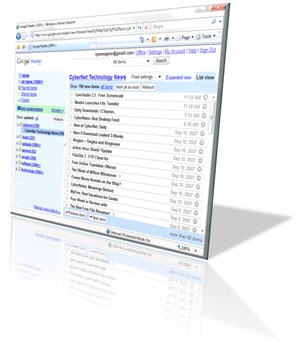
I don’t use RSS feeds inside Microsoft Outlook 2007 at all, although it’s an enabled feature by default. I only use Outlook for work, and while connected to the VPN, there is no way to get to the feeds anyway.
If I want to read RSS feeds, I’ll use Google Reader or similar tools. I’ve written a tool that takes any RSS, Atom or XML feed and converts it to HTML for use on a PDA, so I’m pretty used to digesting them.
But the “RSS Feeds” folder in Outlook is a nuisance if you don’t use it, and I just don’t even want it showing up in my folder list; it’s clutter in the interface that I don’t want in my way.
I searched and searched for ways to get rid of it, and it seems like nobody had the real answer. Everything I found was hacky or unworkable. There’s a lot of “You can’t delete it, just ignore it.” posts around, but that’s because people give up too easy and very few people are as stubborn as me.
So I figured it out, and my method is nice and clean. Here are the steps to do it (with step-by-step screenshots along the way):
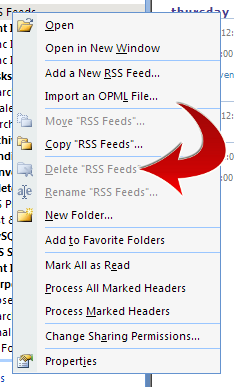
- Open Outlook and right-click on your “
RSS Feeds” folder. You should see that “Delete RSS Feeds” is grayed out. This is completely normal, but not ideal. We’re going to fix this:
- Download the 2007 Office system Administrative Template files from Microsoft. This is an MMC add-in, and we have to add it as a snap-in. Save the file to somewhere on your system. It will be called
AdminTemplates.exeby default unless you rename it. - When you run
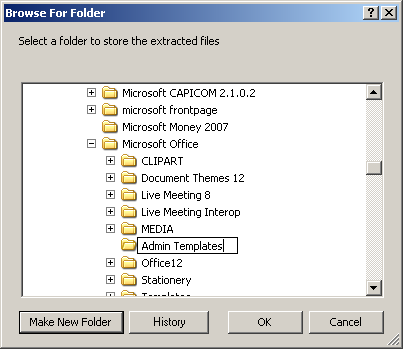
AdminTemplates.exe, it will ask you where you want to extract the templates. Pick somewhere on your system that you’ll remember. Since these were Office 2007 templates, I decided to put them inC:\Program Files\Microsoft Office\Admin Templates, as shown here:
- Run MMC, by clicking on
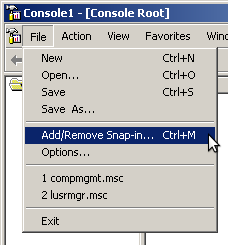
Start->Runand typing “mmc.exe“. You’ll see a plain console window appear. - Click on
File->Add/Remove Snap-inand another dialog will appear. Click “Add...” on the bottom of this dialog:
- In the list of Standalone Snap-ins that show up, you’ll want to scroll down and select “
Group Policy Object Editor“, and click “Add“:
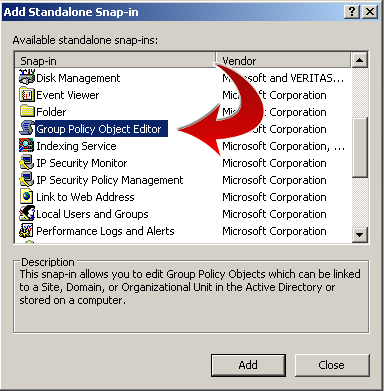
- A dialog box will pop up. The default Group Policy Object shown in this dialog should be “
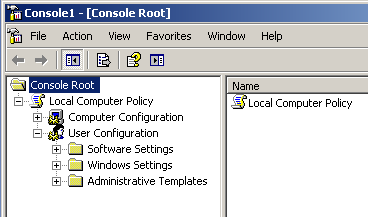
Local Computer“. Click “Finish” here to accept the defaults. Click “Close” to close the previous dialog and then “Ok” to accept the addition of the new Snap-in. What you have when you’re done, should look like this:
- Expand “
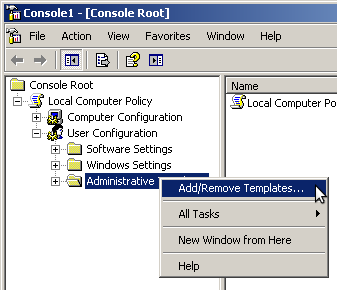
User Configuration” until you see “Administrative Templates“. Right-click on this and select “Add/Remove Templates“. That should look like this:
- When you select this, a dialog will pop up. At the bottom, you’ll want to click on “
Add” here, and browse to the location where you extracted the Administrative Template Files that you downloaded in step 1 above. You’re specifically looking for theADM/en-us/outlk12.admfile found in this location. Substitute ‘en-us‘ for the language of your choice, if you’re not running an English/US version of Outlook 2007:
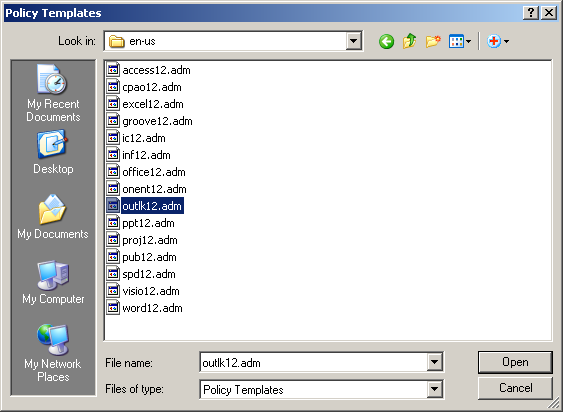
- Choose
outlk12.admand click on “Open” to select it. Click “Close” on the previous dialog to confirm that choice. When you do, you should now see a new “Microsoft Office Outlook 2007” option under the “Administrative Templates” item. - Expand this option until you see a “
Tools | Account Settings” option and inside there an “RSS Feeds” option. Expanding that, should look like this:
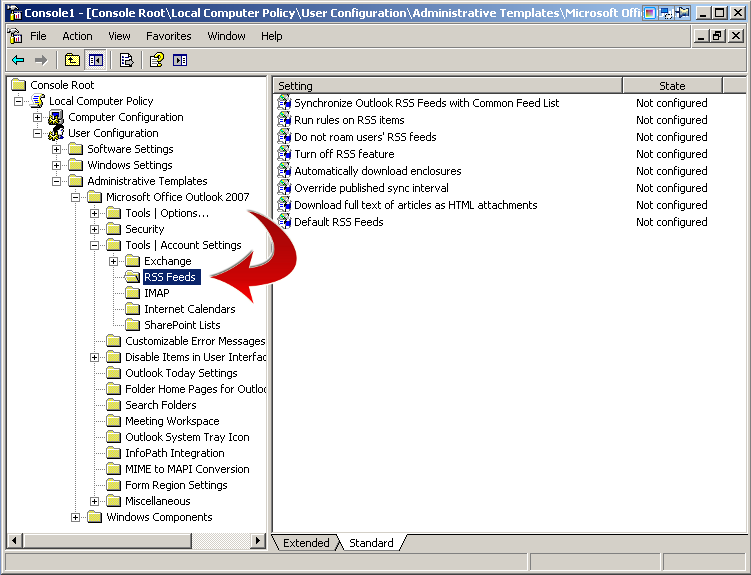
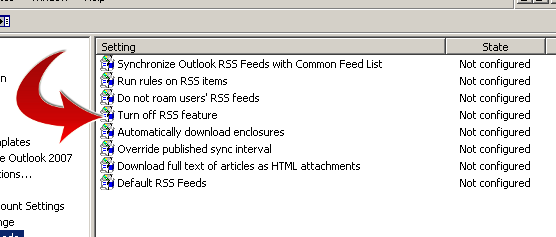
- The option you want to toggle is right in the middle of the list on the right side. Double click on “
Turn off RSS Feature” and select “Enable” from the list. All of the other options should say “Not Configured” when you’re done. Click “Ok” to confirm and close that dialog.
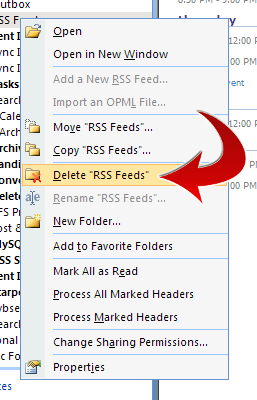
- Now if you close Outlook and re-launch it, and right-click on the “
RSS Feeds” folder, you should be able to delete it, as seen here:
The best part about this approach is that you can delete the “RSS Feeds” folder, then return to the MMC, set “Turn off RSS Feature” to “Not configured” again, setting everything back to the way it was, and the RSS Feeds folder will still remain gone. Outlook will not add it back.
Clean, clean, clean… and did not require any odd hacks to the registry or any other non-standard tweaks that would be hard to reproduce on another system.
Mike said on February 5th, 2010 at 4:44 pm quote
I got to step 12, tried 13, and Delete was still grayed out. When exiting from mmc, it asked if I wanted to “Save console settings to Console1.msc?”, at which point I clicked Yes, then exited mmc. Delete was still unavailable. I rebooted the system, and Delete was still unavailable.
I don’t have admin rights. Could that be why this didn’t work?
KH said on February 10th, 2010 at 2:50 pm quote
Windows 7, Outlook 2007 w/SP2 and same results of Mike. I do have Admin rights.
David said on February 11th, 2010 at 8:14 pm quote
I’ve got same problem as Mike. followed all the steps and got same messages at step 12 and 13. I have admin rights and it still did not work.
Ken said on February 15th, 2010 at 3:55 pm quote
Great step-by-step instructions, but they didn’t result in the ability to delete the “RSS Feeds” folder. Think there might have been additional steps that made it possible?
colin brakewell said on February 18th, 2010 at 5:12 pm quote
Food for thought, (or rather, those bits I could easily read). I suffer from color blindness (deuteranopia to be precise). I use Chrome browser (no idea if that makes a difference), and much of this site is hard for me to read. I know that it is not your problem really, nevertheless it would be kind if you would consider color blind folk like me while doing the next site design.
Paul said on June 28th, 2010 at 1:51 pm quote
Worked for me!
Thanks!
Bill said on July 10th, 2010 at 2:22 pm quote
Same as previous people, this does not work for me, Delete is still greyed out.
I’ve been searching the internet for a method of removing that folder via GPO from our server; unfortunately “Turn off RSS feature – Enabled”, “Default RSS Feeds – Disabled”, and “Synchronize Outlook RSS Feeds – Disabled”, will not remove this folder. All other Outlook .adm policies seem to work fine for me with the exception of this one. Frustrating.
David A. Desrosiers said on July 10th, 2010 at 5:49 pm quote
It DOES work, if you install the snap-in correctly and run through the steps one at a time.
I reproduced this on a clean Windows and Office 2007 build multiple times without any trouble.
It DOES work, unless there are some other tools or Group Policies that prohibit it.
David Tebbutt said on July 22nd, 2010 at 3:36 am quote
Okay, it doesn’t work for me either.
I am running Vista Business and Outlook 2007 SP2.
The folders in my copy of Admin Templates have one difference: Administrative Templates does not have a sub folder of Microsoft Office Outlook 2007. For that you have to go into a different sub-folder: Classic Administrative Templates.
Apart from that, everything is the same.
Except the instructions don’t work.
David Tebbutt said on July 22nd, 2010 at 3:38 am quote
To be precise, ‘Admin Templates’ should have read ‘Administrative Templates’ in the previous post
Russ said on September 7th, 2010 at 3:33 pm quote
Yay! I love you. Works just fine, Office 2007, Win7.
Make sure you’re choosing “ENABLE” and not “DISABLE” there, folks. I know it’s counter-intuitive but you want to ENABLE the elimination of the RSS capability. If that makes sense.
Rick said on October 25th, 2010 at 10:20 am quote
Same for me, didn’t Work ) :
DEB said on October 27th, 2010 at 9:51 am quote
This worked very well for me with Office 2007 on a Windows 7 PC – a couple little differences, but nothing insurmountable. Thank you so much for this guide!
David A. Desrosiers said on October 27th, 2010 at 10:42 am quote
@DEB: What were the differences? If you can let me know, I can update this post to include them.
Thanks!
joe said on November 2nd, 2010 at 4:43 am quote
hello, i ALSO could not get the folder deleted. but when i created a new Outlook PST (by cleverly renaming the offending personal folders outlook.pst to joe.pst) the newly created one did not have the hugely offensive RSS folder, thanks i believe to my registry work outlined above.
success!
thank you!
Joe
Mark said on November 12th, 2010 at 9:26 am quote
Setting this option Greyed out “add an rss feed” or “import an opml file” when right clicking the RSS folder but didn’t ungrey delete folder! I am in an Enterprise which uses centralised Grp policies and linked to Exhange, I have even created a new OST file but the RSS folder is still there! grrrr
Kimberley said on January 14th, 2011 at 3:48 pm quote
Am trying your RSS remove fix, and it’s no longer possible to do step 6. In the admintemplates file, running mmc.exe, the list of options no longer includes Group Policy Object Editor. Other options?
zachster said on March 20th, 2011 at 1:42 pm quote
Has anyone figured out how to do this with outlook 2010? I tried and never found the group policy in the list.
KPCSlor said on April 7th, 2011 at 1:28 pm quote
Just used this method on Outlook 2010 on my windows XP PC. Prompts were a bit different and I had to get the 2010 version of the snapin, but was able to delete all individual RSS feeds. I still can delete the main ‘RSS Feeds’ top directory, but a least I have stopped downloading MSN news and Microsoft Office at home RSS garbage that they forced me to subscribe to.
Thanks
Nicko said on April 12th, 2011 at 11:45 am quote
Nope.
Followed the instructions to the letter.
Still can’t remove ‘RSS feeds’
XP SP3
Outlook 2007 SP2
EN-US
Ho hum.
Marc said on June 3rd, 2011 at 10:24 am quote
Warning: leaving the “Turn off RSS feature” boolean Enabled disables your Reading Pane, so enable the setting, delete the RSS Feeds folder from your Mailbox, AND then your Deleted Items, then set said setting to “Not configured.”
Craig said on July 25th, 2011 at 4:24 am quote
2010 Templates are here: http://www.microsoft.com/download/en/details.aspx?
id=18968
Couldn’t delete RSS feeds though.
RS said on July 27th, 2011 at 3:41 pm quote
Worked like a charm for me.
Thanks
RAD said on August 13th, 2011 at 10:30 am quote
Followed the steps, but had the same problems as Mike, and I have Admin. But looked in Outlook>Tools>Options>Mail Setup>Data Files>….and there is now NO tab etc for RSS feeds!!!!! So it must work but in a differnt way!!!
jusdandy said on September 9th, 2011 at 11:35 am quote
I tried this to the “T”. I can’t remove the rss folder in outlook, But the option for rss feeds in options is gone and that works for me. My problem was my boss was getting tons of rss feeds from BBC News and it annoyed him, which annoyed me since s!#@t rolls down hill. And everything I read on the internet and tried did not stop them from coming in. So my fingers are crossed as I pray this option cures my headache…
whatever said on September 22nd, 2011 at 1:04 am quote
Definitely does NOT work. I got the same result as the first few posters. I have admin rights. There *must* be something missing!
nobody said on September 23rd, 2011 at 12:33 am quote
Followed this precisely. Doesn’t work.
Thad said on October 19th, 2011 at 5:38 pm quote
I had the same problem. How are you supposed to save the configuration? You can do a “save” and it will save an .msc file but how does Outlook know to go look in the .msc file for configuration information?
iTab said on November 1st, 2011 at 11:18 am quote
I tried and tried to get this to work, but just couldn’t. It is so well written and the step-by-step instructions are spot on, but “Delete ‘RSS Feeds'” continues to remain grayed-out.
David mentions other “group policies” that may be preventing this from working. I’m not a techie – what might that be and at what/where should I be looking?
Having this useless folder in my Outlook folder list is making my OCD rage!
Thanks for any additional help!
Kent Armstrong said on November 3rd, 2011 at 7:00 pm quote
Add/remove snap ins did not have Group Policy Object Editor, so what do I do?
Rob said on November 30th, 2011 at 3:35 pm quote
Interestingly it *almost* worked for me. The “Delete RSS Feed” text is no longer grayed out, but when I actually go to delete the folder it says I don’t have permission. I have administrative permission on this box.
This is my work computer. My guess is that there’s some higher-level permission required on the Exchange server or something.
All you guys who got this to work: any of you on Exchange servers?
Nil said on January 21st, 2012 at 1:13 am quote
I had same problem as many others on this thread.
When I went to Outlook Today, I was then able to delete RSS Feeds!
Ian said on February 24th, 2012 at 11:54 am quote
This is quite easy to do in Outlook 2010 with the appropriate admin template. Thanks!
Chetan Chitte said on March 16th, 2012 at 12:56 pm quote
Thanks a lot sir. It really helped me a lot. I could finally delete the RSS feeds folder from outlook 7. Thank you again
BobL said on March 19th, 2012 at 8:04 pm quote
Worked for me. There was a sub folder in the RSS folder that initially became available to delete. Then after restarting Outlook the main RSS folder could be deleted. Sweet.
to open a PST file said on May 15th, 2012 at 10:57 am quote
When I initially commented I appear to have clicked the -Notify me when new comments
are added- checkbox and from now on every time a comment is added I
recieve four emails with the same comment. Is there an easy method you can remove me
from that service? Kudos!
Hi said on September 28th, 2012 at 10:25 am quote
I downloaded the admin template for outlook 2010 from here: http://www.microsoft.com/en-us/download/details.aspx?id=18968 and it doesn’t work for me? The rss folder delete option is still not allowed.
BG said on January 30th, 2013 at 11:18 am quote
Worked for me-thanks! Note that it was a little different on Outlook 2010. I downloaded the 2010 version of the Admin Templates here: http://www.microsoft.com/download/en/details.aspx?id=18968. When I got to Step 11 the folders looked different from your screenshot-I had a lot of extra folders and had to click on the last one “Classic Admin Templates” to find the Microsoft Outlook folder and turn off the RSS as explained. Thanks so much!