
HOWTO: Repair your Outlook PST file from the commandline
The more I use Outlook 2007 for work and other data capture, the more I loathe how fragile the “Personal Storage Table” (.pst) file format is. You can’t relocate it on a network share because Microsoft’s locking mechanism will fail, and trash the data. At random times Outlook will just “hang” when trying to read or open the local .pst file, necessitating a force-quit, trashing the data. It’s so lovely, everyone should use it. Groan.
Normally, you can repair the issues found, by using a tool like ScanPST from Microsoft themselves, but that tool is strictly interactive, and can’t be scripted or automated or run from the commandline at all.
But there is a way, read on to find out how…
SCANPST.EXE never remembers the previously-used path to the .pst files, so every time you use it, you have to click “Browse...“, and surf along your drive to find C:\Documents and Settings\<UserName>\Local Settings\Application Data\Microsoft\Outlook, and repair the data there.
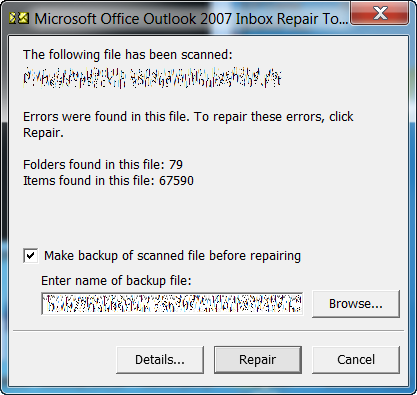
Not fun.
They could have improved this little utility in a few very simple ways, and made it much more powerful:
- Add the ability to specify the path to the .pst files, repair options, and location of the backup if errors were found. It’s not hard to have:
SCANPST.EXE /in C:\Path\to\Outlook\Personal.pst /backup T:\Repair\Personal-2010-02-01.bak
- When launching
SCANPST.EXE, have it populate the “Browse...” path with the current directory. This means you can copySCANPST.EXEto your%UserData%/Microsoft/Outlookdirectory (or create a shortcut there), and never have to surf around with the “Browse...” menus again. - Remember the last-used path that was browsed when using the tool. They write everything else to the registry and other local files, why not this simple step? Better yet, just read the data provider that stores where the email accounts are referenced, and use that.
SCANOST.EXEdoes, why notSCANPST.EXE?
Everything Microsoft does is so random and inconsistent, even within their own applications. It makes me wonder if they have a different developer working on the code each day of the week, not ever talking to the previous developers who worked on it.
While I was writing this blog post, Outlook trashed my data again, so I went in and disabled all of the add-ins, and I’m hoping that will solve it in the short term. I run Xobni Plus and Taglocity Professional, and both add value, but also add complexity.
I’ve had some major problems with Xobni before, and I hope this isn’t the same thing rearing its ugly head again.
One trick I’ve found that works well for the limitations of SCANPST.EXE, is to put a shortcut to my Outlook data directory on my desktop, so when I click “Browse...” in SCANPST.EXE, I can then click “Desktop” on the left-side options menu, and get right to my data folder shortcut and dive right in, instead of browsing through the C:\ drive to find what I need, 12 clicks down.
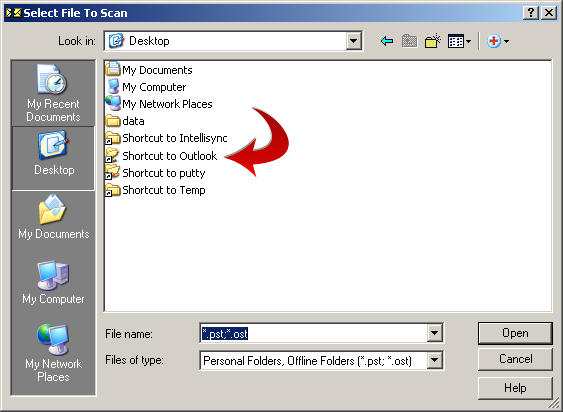
How hard would it have been for Microsoft to just incorporate this right into the GUI itself? Something like this (I mocked this up, because this is really where this feature belongs):
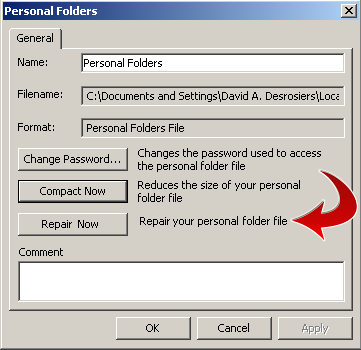
But then I found a little utility called CSCANPST from Joshua Levine:
CSCANPST is tool that will let you use SCANPST from the command-line, making it possible to write batch files that will run SCANPST unattended.
It’s basically a little wrapper written around the AutoHotkey language that waits for certain keywords on dialogs and boxes, and programatically fills them or presses the right keys for you.
In the case of CSCANPST.EXE, you simply pass it the path to where SCANPST.EXE is, and the path to your .pst file, and let it go. It works, it’s convenient, but there’s one problem I found the very first time I ran it…
You can’t specify where the backup file will be stored, or what the backup filename will be. EEK!
The problem of course, is that if you run this twice in a row, you’ve just trashed your first backup. It defaults to overwriting the .bak file each time you run it.
You could move your backup files out of the way and run it subsequent times, but the tool really should allow you to pass the name of the backup file or at least a non-standard location for the backups. That’s my only real nit with it… other than that, it works perfectly.
Too bad Outlook itself doesn’t.
Gavin said on October 26th, 2010 at 1:15 pm quote
Hey another alternative search tool for Outlook is Lookeen! Have you heard of it? It is small, but robust! It is perfect for business and helps me a lot organizing all of my mails! Maybe you wanna check it out too, can find it here: http://www.lookeen.net There is a 14-days free trial!
David A. Desrosiers said on October 26th, 2010 at 3:01 pm quote
@Gavin: Have you seen my other posts on Lookeen? DO NOT USE IT, if you care about your data.
It’s not stable, and corrupts the data, 100% reproducibly and repeatably:
https://blog.gnu-designs.com/warning-do-not-install-lookeen-and-xobni
https://blog.gnu-designs.com/external-tools-to-search-microsoft-outlook-2007
Scanpst said on February 3rd, 2012 at 6:22 am quote
Thanks very much for the suggestion, but if I have to use a backup, how will I do it if CSCANPST.EXE doesn’t have a option for specifying where to store a backup